

Pre-sales customer service WeChat


Zebra Printer Restore Factory Settings
Release Time:2020-07-21
Zebra printer is a common label printing device. When the printer has other problems such as printing shift or setting errors, it can be solved by restoring the factory. The following are two methods of operation for restoring the zebra printer provided by Hongxing Yongli as a whole:
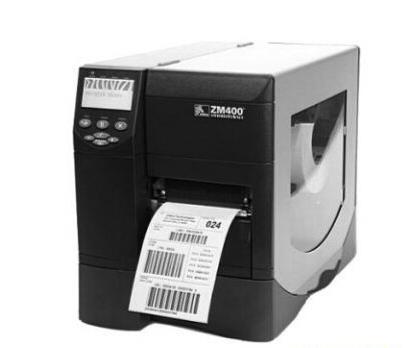
Method 1: Printer Control Panel Settings
Press SETUP/EXIT twice on the printer panel to enter the selection menu, and "DARKNESS" will be displayed on the display screen. Then press the "SETUP/EXIT" button again, and the "SAVE SETTING -PREMANENT" will be displayed on the display screen. Then press the ""-"button on the panel to select the" LOAD DEFAULT "storage method in the options; finally, press the ENTER (or" SETUP/EXIT ") button on the panel, and the printer will" restore factory settings ".
Method two: key combination settings
Turn off the power first, press and hold the "PAUSE" key and the "FEED" key at the same time, and then turn it on. After all the lights on the panel are turned off, release the key to easily "restore factory settings". This method is applicable to all other Zebra printer models.
Focus on us
Official Account
Pre Sales
After Sales
National Service Hotline
Complaint suggestion:+86 13530144755
Enterprise E-mail:wanglili@xingyongli.com
Links:Shenzhen Hongxing Yongli Electronic Technology Co., Ltd.(Apply for friend chain plus QQ:2355671558)
©2024 Shenzhen Hongxing Yongli Electronic Technology Co., Ltd Powered by www.300.cn