

Pre-sales customer service WeChat


Common Faults ZEBAR Zebra Barcode Printer Repair
Release Time:2020-06-17
Common Faults ZEBAR Zebra Barcode Printer Repair
It is not uncommon for bar code printers to be used in real work and life. Our company has encountered some common faults in selling and using zebra bar code printers for a long time. Today, I will sort out the maintenance methods of ZEBAR zebra bar code printers for common faults as follows, so as to provide reference for emergencies.
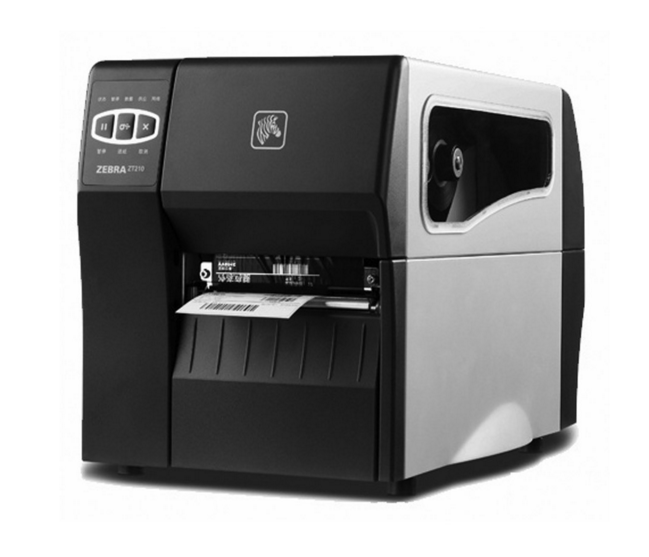
Several situations in which an error occurs in a 1. printer
There will be several errors that will affect the normal printing of the printer. Some will stop the operation of the printer, while others will only remind the operator and will not affect the printing.
A print head open error will cause the entire printer to stop printing. The print head temperature is low, it will not affect the specific use. Can still operate normally.
Label run out error, carbon tape run out error, print head open error, cutter error
Run out of labels, run out of ribbons, wrong cutter. causes the printer to stop printing. Then make the error light always on. And the print head open error, just make the error light flash.
Once one or more of the above errors occur, the printer's Pause light will turn on. Then wait for the user to eliminate the error. Once the user has cleared the error, the user can press the Pause button to put the printer in normal operation.
Of course, if the printer is in the state of printing labels before the error. Then the printer will continue the previous printing after clearing the error.
Print head too hot
When the print head gets too hot, all print jobs are stopped. Then the error light will flash slower. Once the temperature of the print head returns to normal, the printer continues to print its job.
In the event of overheating of the print head, other functions of the printer are still normal. For example, Feed, and calibrate are relatively normal.
Print head too cold
A similar situation will occur in the printer when the temperature of the print head becomes relatively low. But the difference is that the printer does not stop printing. It's just that the error light will flash slower. So the print head temperature is too low and will not affect the normal use.
The power supply is too hot
When the power supply becomes hot, all print jobs are stopped. At this point the error light will flash slower. When its temperature drops again, the printer will continue to print normally. Its phenomenon is similar to the overheating of the print head.
2. the following are some error cases where ERROR
The LED light of the panel, the print head turns on the carbon tape, runs out, the label runs out, the print head is too cold, the print head is too hot, the thermal power source is too hot
Error Fast blinking constant bright slow blinking slow blinking slow blinking
Error prompt and error report on the Led display:
Ribbon Out
Problem Solution
In the state of thermal transfer, the carbon belt is not installed and the carbon belt is reinstalled.
In the state of thermal transfer, the ribbon sensor is not very good to measure the ribbon value. Re-recognize paper and carbon tape
In the heat-sensitive mode, the ribbon is not used. Remove the carbon ribbon
Please confirm that the driver and software settings are right
Paper out
The paper is not loaded, or the paper is not loaded to refit the paper.
The sensor did not move to a better position. Move the reflection sensor to the correct position.
The printer is set up for non-continuous paper, but continuous paper is used to reset the printer to the appropriate paper type
Confirm that the settings in the printer driver are correct
Re-recognition of paper
The media sensor is not properly selected in the sensor select menu and reselect sensor.
Head Open
Print head not closed Close print head
The carbon tape is not installed correctly, covering the print head sensor and reinstalling the carbon tape.
Ribbon In
The printing method is not set correctly. Set the correct printing method in print method again.
Please confirm that the settings in the software or driver are correct
The carbon tape is installed and returned to print method to set the correct printing method.
Please confirm that the settings in the software or driver are correct
Out Of Memory
There is not enough memory to execute the next command. Please make sure your PCMCIA card and FLASH are installed or working properly.
3. print quality issues
Partial position print missing print head broken needle. Replace the print head
The print head has dirt to clean the print head.
Wrong print position, wrong paper feed. Printer sensor error Adjust the left and right positions of the printer's sensor. Or seek technical skills.
There is an error with the printer's paper type and the settings for continuous or discontinuous paper are wrong. Set to the correct type.
The ribbon is crumpled. The position of the carbon ribbon is not correct when feeding the paper. Reinstall the carbon ribbon.
Wrong print depth setting Set the temperature of the paper
Wrong Print Head Pressure Readjust the print head pressure.
Solutions to some software-related problems that 4. often encounter
1. I use the random software BARONE of ZEBRA machine can not print Chinese.
Answer: Please enter the installation directory of BARONE and then enter the BIN directory. Modify setup.ini. Delete all the semicolons before printer the following statement. These statements are:
TTFSizeThreshold=1
TTFROTATETHRESHOLD=1
Rotatethreshold=1
Then enter the BarOne program and you can type Chinese. Remember to select the text body.
2. My machine prints too light. does not meet my requirements
Answer: Enter the printer panel to adjust the darkness.
3. My printer suddenly had a retraction, much slower than before.
Answer: Enter the printer panel to see its print mode. Please make sure you select tear off. If not, please change to tear off. You can remove this retraction.
4. During the use of my printer, a dialog box appeared on the computer that the printer was out of paper.
Please take a look at what light the printer is on. If it is an error light, please check whether the paper and carbon tape of the printer are correctly loaded. If the pause light is on, just press it again to print normally.
5. My printer does not respond after printing.
Please confirm whether the print line is plugged tightly? If so, please change a computer to connect the printer and reinstall the printer driver and printing software. Please see if it can be printed. If you can print, please check whether the parallel port of your previous computer is damaged.
Or it can be used in the Edit editing environment in the Ms-Dos mode on the previous computer.
Enter the following text:
^ Far away
^GB600,0,100
^FO20,100^BEN,60,Y,N^FD123456789012^FS
^XZ
If you can't print a black block, there is a communication problem.
6. My printer jumps paper. Cannot print normally.
Please press the FEED button a few more times to see if it is normal to walk the paper each time.
If it is not normal, please enter the manual calibrate in the display menu. Make a paper recognition. Make sure that the paper type setting in the printer driver is correct. And the settings in the printer are also correct.
If the paper feed is normal, please check whether the paper in the software or driver is set correctly.
7. The bar code printed by my printer cannot be scanned by the code gun.
Please first confirm that the relevant settings of your bar code gun are correct. The inspection method can be tested by playing the same label on other barcode machines. If it can be swept out, it proves to be a problem with the barcode machine.
If it is confirmed that the problem is with the barcode machine, please make a long black bar. If there is a white bar in the black bar, it indicates that the printer has broken the needle. If the broken needle is not serious, try to keep the bar code away from the broken needle. Otherwise, only the replacement of the print head, please repair.
8. After my printer is turned on, all four lights are on. There was no reaction.
There is a problem with your printer hardware, please send it in for repair.
9. My printer has been breaking the ribbon.
Please try to lower the depth darkness of the printer and reduce the printing pressure appropriately.
10. My printer prints when the label has been offset to the outside.
Please make sure that the label paper of your printer is installed correctly and the back loading place is tightly clamped. And the upper limit of the paper feed path is correct.
11. My printer uses a serial port. But it has not been able to print.
And ensure that the parameters in the printer are the same as those in the computer host.
12. My printer always uses the same specification of paper. I don't want it to recognize paper every time it is turned on, wasting my label paper.
Please enter the panel to set and change the value of MEDIA POWER UP to FEED or NO MOTION.
Attached: Its password is 1234.
13. My barcode printer wants to print Japanese characters or other special characters.
Any as long as you can enter the character barcode printer can print. But first you have to be able to have this software to be able to enter this character into the barcode printing software. After that, the operation is the same as normal printing.
14. My barcode printer wants to make continuous paper.
If you are using BARONE software, just tick the box in the label setup of File in the software before setting it in continuous media.
15. My barcode printer has a lighter side when printing, or nothing is printed on that side.
Please adjust the pressure of the print head.
16. I want to use the barcode machine in my own programming.
Please find out the programming manual ZPLII of the random Zebra random disc in the zpl guide directory, please refer to it yourself.
In case of special requirements, please contact the seller and will provide relevant interfaces and solutions.
Hongxing Yongli Group (China) Co., Ltd. provides a full range of bar code services in (Shenzhen, Guangzhou, Hong Kong, Suzhou, Fujian, Shanghai). For more repair methods for ZEBAR zebra bar code printers, please move to Hongxing Yongli Home Page: www.xingyongli.com
Focus on us
Official Account
Pre Sales
After Sales
National Service Hotline
Complaint suggestion:+86 13530144755
Enterprise E-mail:wanglili@xingyongli.com
Links:Shenzhen Hongxing Yongli Electronic Technology Co., Ltd.(Apply for friend chain plus QQ:2355671558)
©2024 Shenzhen Hongxing Yongli Electronic Technology Co., Ltd Powered by www.300.cn